Appearance
Two groups of settings control the widget: the chat bubble visitors click, and the theme applied to the chat interface once it opens.
Customize the visual style of your Nivon AI agent, including the chat icon, bubble color, position, theme, and display mode.
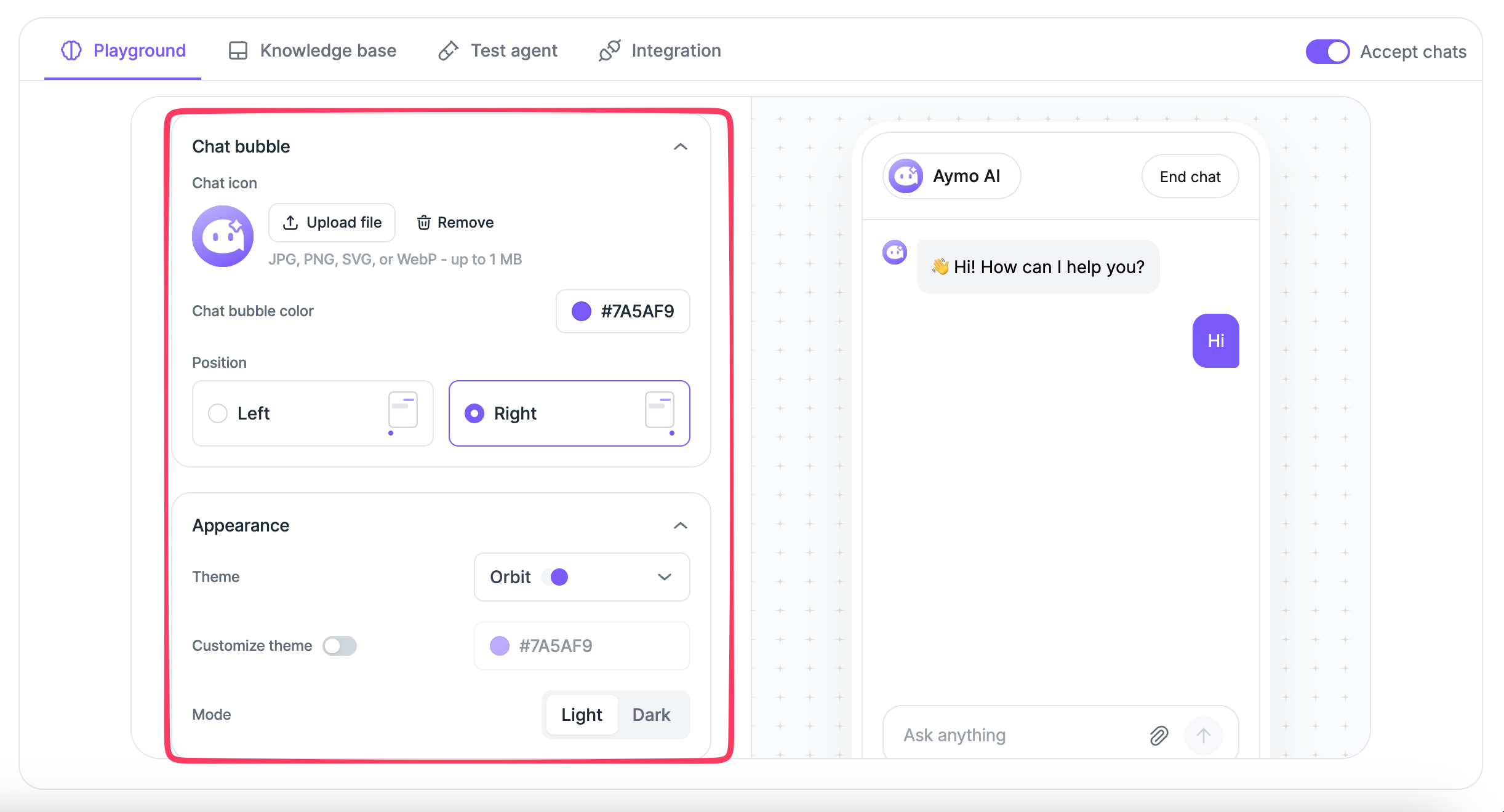
Chat Bubble
The chat bubble is the launcher visitors use to open the agent.
Chat Icon
Upload a custom icon for the chat bubble.
Supported formats:
- JPG
- PNG
- SVG
- WebP
Maximum file size: 1 MB.
Use Remove to replace or remove the current icon.
Chat Bubble Color
Set the color of the chat bubble.
You can choose a color from the picker or enter a HEX value directly.
For example:
#7A5AF9
Position
Choose where the chat bubble appears on the website:
- Left
- Right
Choose the position that fits the layout of your website and does not overlap important page elements.
Chat Interface
These settings apply once the chat window is open.
Theme
Choose a predefined theme for the chat interface.
Available themes:
- Orbit
- Frost
- Mint
- Sunset
- Blossom
- Carbon
The selected theme controls the visual style of the chat interface.
Customize Theme
Enable Customize theme to change the theme color.
Use the color picker or enter a HEX value to set the color.
The custom color is applied to the selected theme.
Mode
Choose the display mode for the chat interface:
- Light
- Dark
Use Light for a light interface or Dark for a dark interface.
Save your changes
After updating the appearance settings, select Update to apply the changes to your agent.
Last updated: August 19, 2026