Plans and Billing
Every plan sets a monthly credit allowance and limits on agents, files, training content, chat history, and workspaces. Compare plans before changing a subscription.
Manage your subscription, compare available plans, understand plan limits, and view your current billing details from Billing and Plans.
Understanding plans
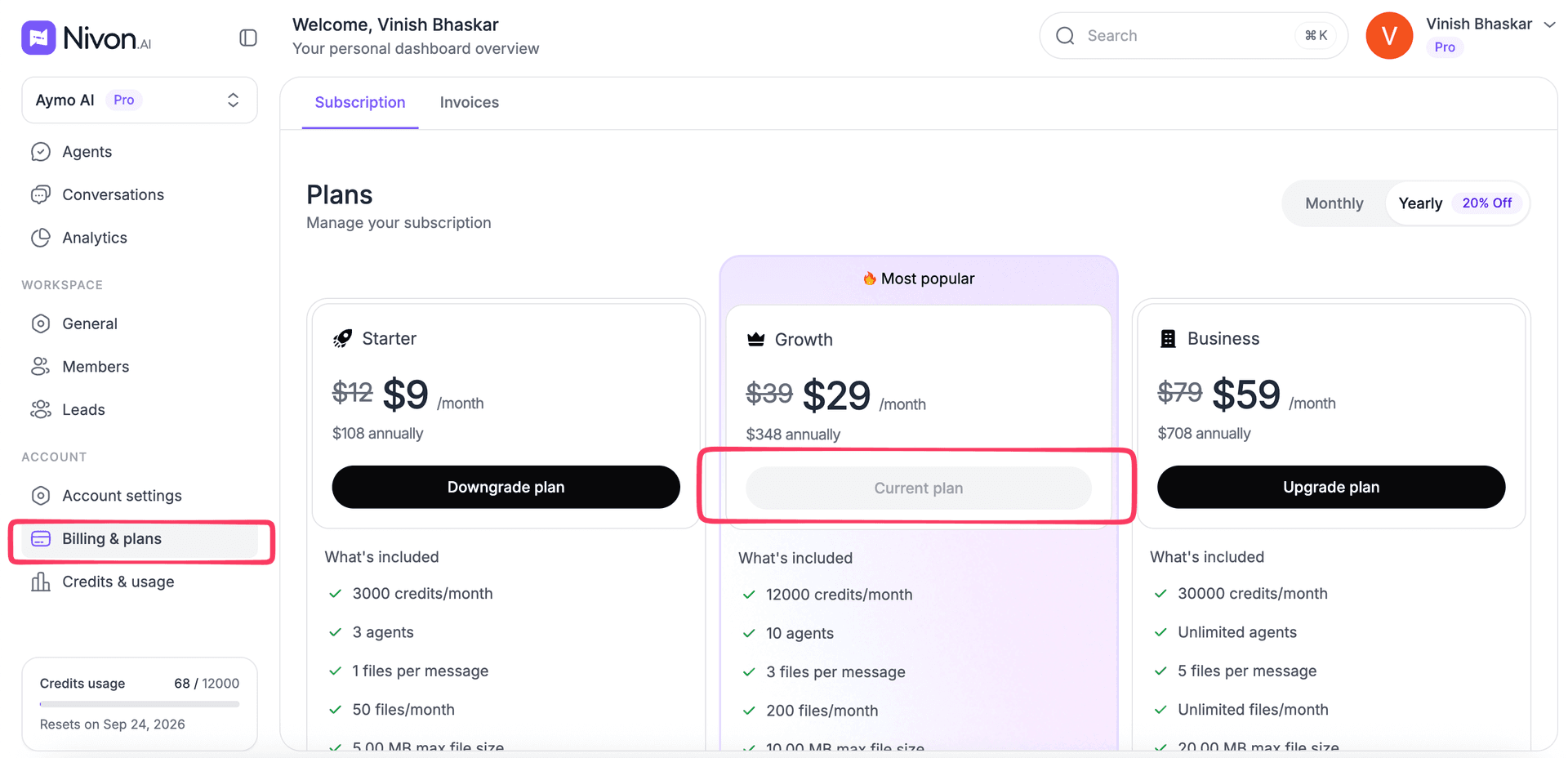
Nivon offers multiple subscription plans designed for different levels of usage and team size.
Your current plan determines:
- Monthly credits
- Number of AI agents
- Monthly file attachments
- Maximum file size
- Training content limits
- Chat history retention
- Workspace limits
The current plan is highlighted on the subscription page. The plan card shows the plan name, billing cycle, included credits, available features, and usage limits.
Compare available plans
The subscription page displays all available plans so you can compare features and limits before upgrading or downgrading.
When reviewing plans, consider:
- Monthly credit allowance
- Number of AI agents included
- File attachment limits
- Knowledge and training limits
- Workspace requirements
- Team requirements
Choose a plan that matches your expected usage and team size.
Monthly and yearly billing
Some plans provide both monthly and yearly billing options.
Yearly billing may include discounted pricing compared to paying monthly.
The subscription page shows the available billing options and pricing for each plan.
Change your plan
Upgrade or downgrade at any time from Billing & Plans. Check current usage against the target plan's limits before switching.
Upgrade your plan
Upgrade when your current plan no longer provides enough resources for your usage.
Common reasons to upgrade include:
- Running out of monthly credits
- Reaching agent limits
- Needing more training capacity
- Supporting a larger team
- Handling more customer conversations
To upgrade:
- Open Billing & Plans.
- Review the available plans.
- Select Upgrade Plan on the desired plan.
- Complete the subscription process.
Your account will be updated according to the selected plan.
Downgrade your plan
If you no longer need the resources included in your current subscription, you can switch to a lower plan.
Before downgrading, review:
- Current usage
- Agent count
- Credit usage
- Workspace usage
- Other plan limits
Make sure your usage fits within the limits of the selected plan.
To downgrade:
- Open Billing & Plans.
- Select the plan you want to move to.
- Choose the Downgrade Plan.
- Confirm the change.
Understanding plan limits
Each subscription plan includes specific limits.
Depending on the plan, these may include:
Monthly credits
Credits are consumed when your AI agents process requests.
Higher plans include larger monthly credit allowances.
AI agents
This limit controls how many AI agents can be created within the account.
Monthly file attachments
This determines how many files can be processed within a billing period.
Maximum file size
This defines the maximum size allowed for individual uploaded files.
Training content
Training limits define how much content can be added to your knowledge sources.
Chat history
Plans may include different chat history retention limits.
Workspaces
Workspace limits determine how many workspaces can be created under the subscription.
For detailed usage information, see Credits & Usage.
Need more credits
If you reach your monthly limits but do not need to change plans, you can purchase additional credits separately.
See Credits and Usage for information about usage monitoring, extra credits, and credit purchases.
Last updated: August 24, 2026