Analytics and Insights
Analytics show how often the agent is used, how many issues it resolves, and how accurate its answers are. Each metric links back to the conversations that produced it.
Use Analytics to understand how your AI agent performs, how often customers use it, and where conversations may need attention.
Select an agent from the Select agent to view its data.
Overview
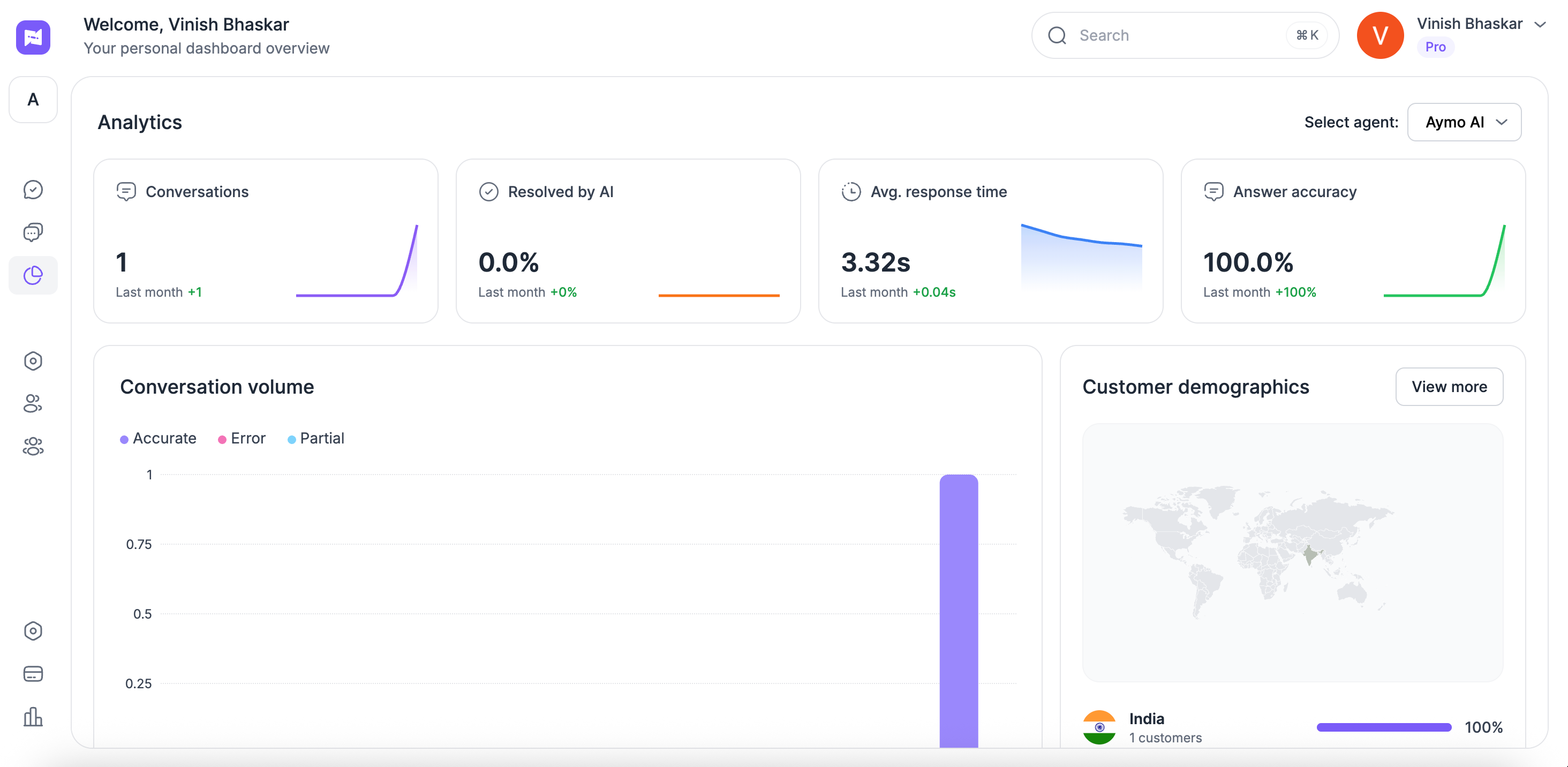
The top of the Analytics dashboard shows four main metrics for the selected agent.
Conversations
Conversations shows the number of customer conversations during the selected reporting period.
Use it to understand how much activity your agent is handling.
The dashboard also shows the change from the previous period when available.
Resolved by AI
Resolved by AI shows the percentage of conversations resolved by the AI agent.
Use this metric to understand how often the agent handles conversations without them being counted as requiring further resolution.
A higher or lower value can help you decide whether to review your agent's knowledge, configuration, or escalation flow.
Average response time
Average response time shows how long the agent takes to respond.
Use this metric to monitor response speed over time.
If the response time changes, review recent conversations to understand whether the change is linked to particular types of questions or conversations.
Answer accuracy
Answer accuracy shows the percentage for the selected agent and period.
Use it as a high-level indicator of response quality.
When the value needs attention, review individual conversations to understand which answers may need improvement.
Conversation volume
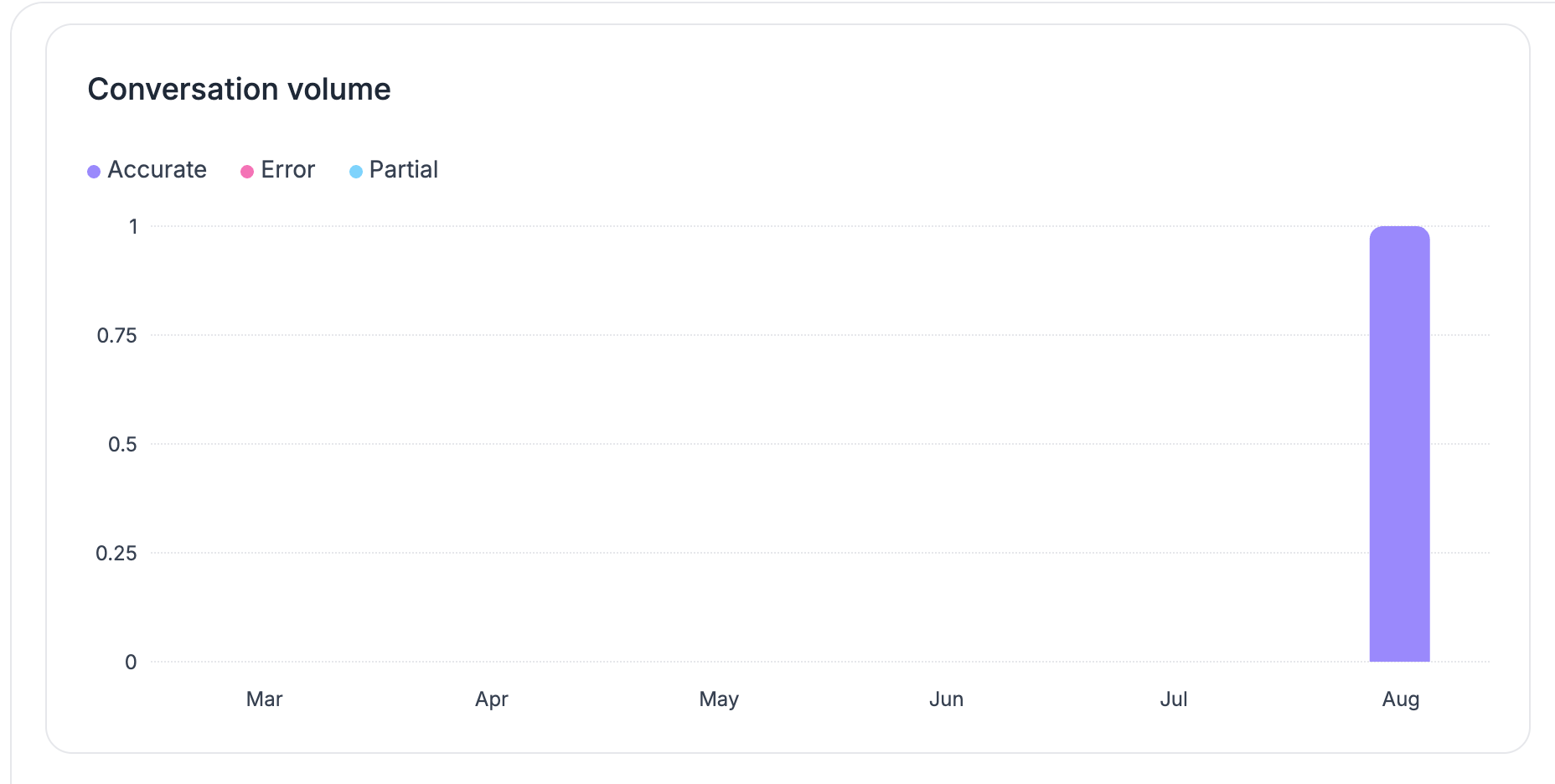
The Conversation volume chart shows conversation activity over time.
The chart separates conversations by these outcomes:
- Accurate
- Partial
- Error
Use this chart to see how response outcomes change as conversation volume changes.
For example, if conversation volume increases and partial or error responses rise, review those conversations to identify common questions or missing information.
Customer demographics
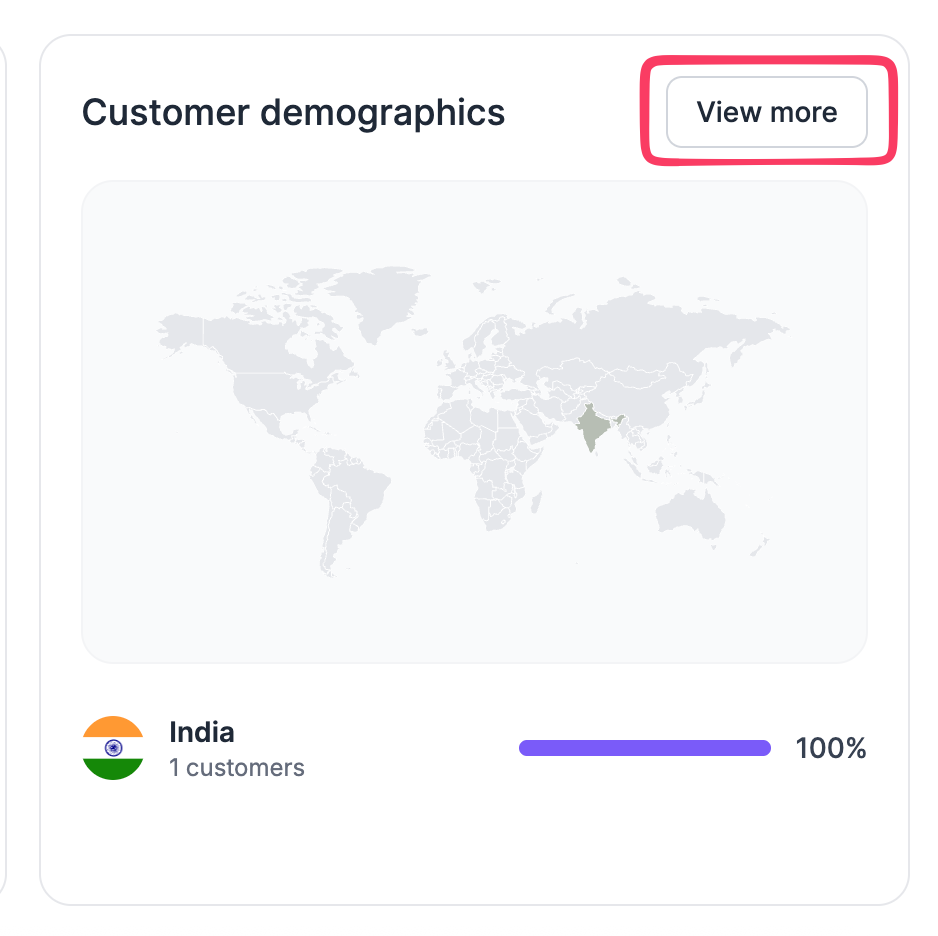
The Customer demographics section shows information about where customers are located.
The dashboard can show:
- Country
- Number of customers
- Percentage of customers
Select View more to see additional demographic information when available.
Use this data to understand where conversations are coming from.
This can also help you spot markets that may need more localized content or support information.
Recent conversations
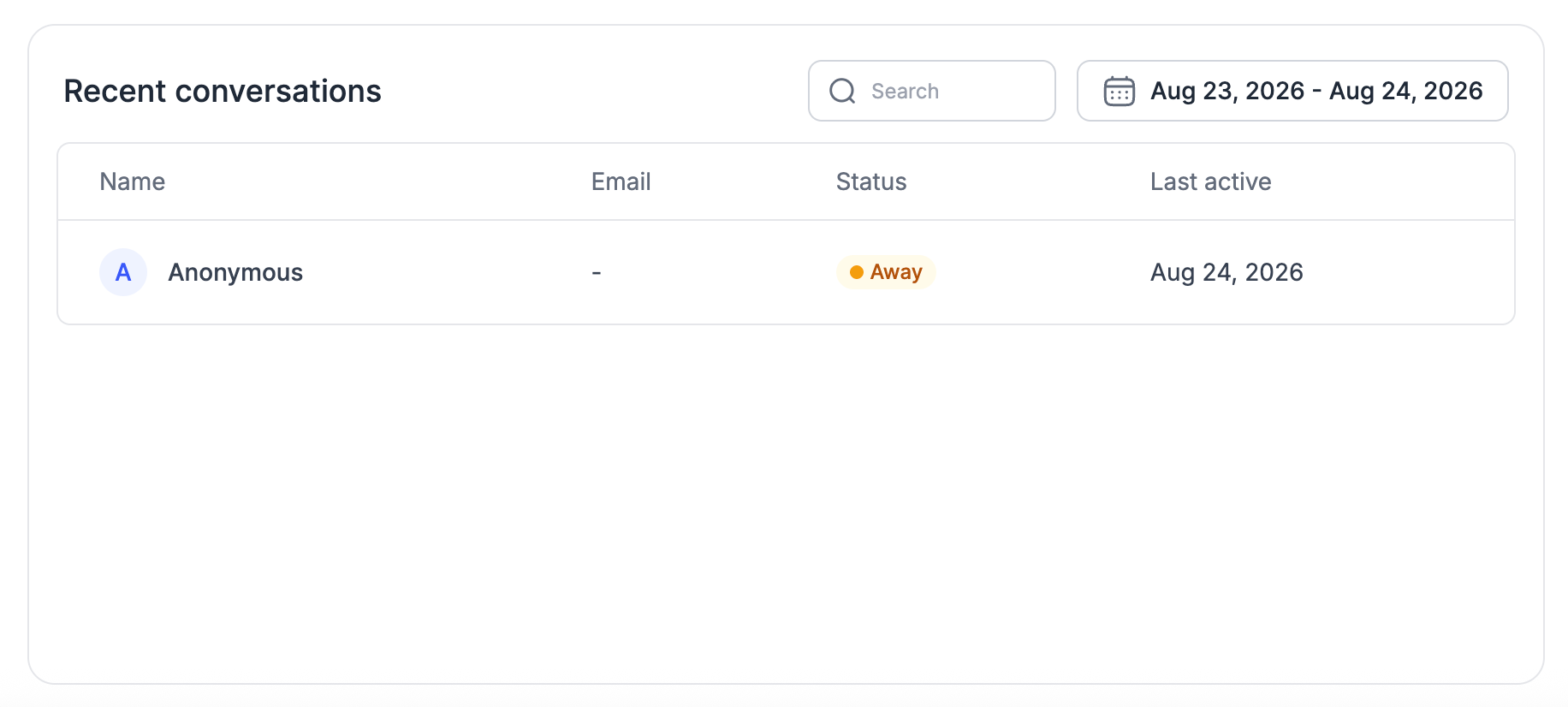
Recent conversations give you a list of recent customer activity.
You can search the list and select a date to narrow the results.
Each entry can show:
- Customer name
- Status
- Last active date
Use this section when you need to move from a summary metric to the underlying conversations.
For example, a change in answer accuracy is easier to understand when you review the conversations that contributed to it.
Response accuracy
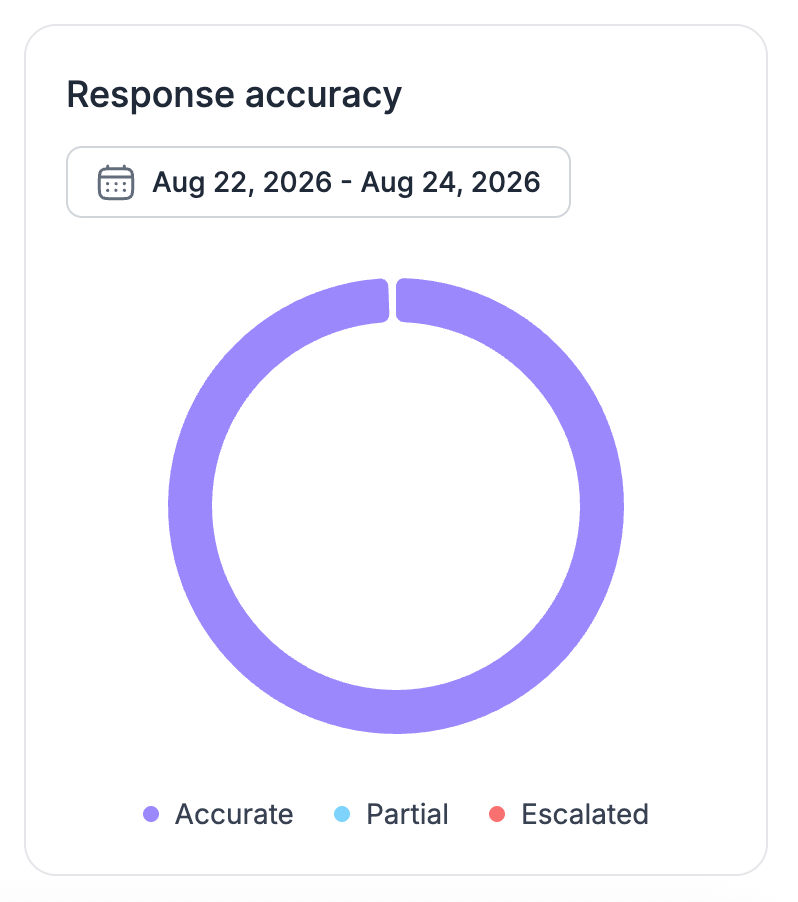
The Response accuracy chart shows the distribution of response outcomes for a selected date range.
The available outcomes are:
- Accurate
- Partial
- Escalated
Use Select date to review a specific period.
This view helps you compare response outcomes over time and identify periods that need closer review.
Filter the dashboard
Two controls change what the dashboard reports on. Both are available at the top of Analytics.
Select an agent
Use the Select agent at the top of Analytics to switch between agents.
The dashboard updates to show data for the selected agent.
This is useful when a workspace has more than one agent, each serving a different product, website, or audience.
Select a date
Date filters let you focus on a specific period.
Use them when you want to:
- Check recent performance
- Compare different periods
- Review a change after updating the agent
- Investigate a specific period of customer activity
Different Analytics sections may have their own date selector.
How to use Analytics
Use Analytics as part of an ongoing review process.
- Check Conversations to understand usage.
- Review Resolved by AI to see how much of the workload the agent resolves.
- Check the average response time for response speed.
- Review Answer accuracy and Response accuracy for response outcomes.
- Open Recent conversations to investigate specific results.
- Look for repeated errors, partial answers, or escalations.
- Update the relevant knowledge or agent settings.
- Test the changes in the Playground.
Analytics shows you where to look. The conversation data helps you understand why the result changed.
Last updated: August 24, 2026