AI Model
Choose the AI model Nivon uses to generate responses for your AI agent.
Nivon provides 23 models from OpenAI, Anthropic, Google, xAI, and other providers. Each model has a credit multiplier that determines how its usage is counted against your available credits.
Available models
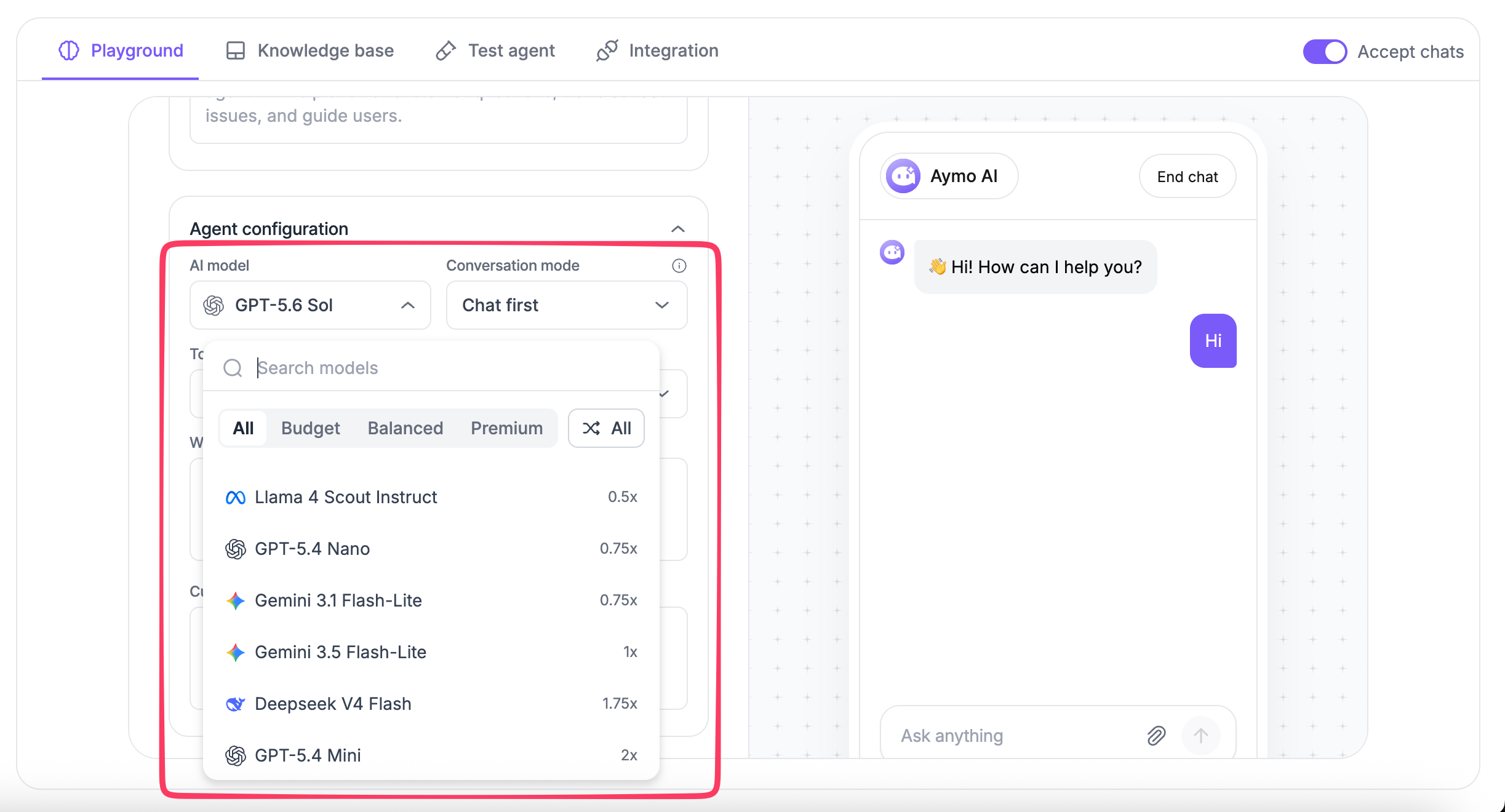
Choose from multiple models across OpenAI, Anthropic, Google, xAI, and other providers. Model choice affects the available model family and credit usage.
OpenAI
- GPT-5.6 Sol · 12.25x
- GPT-5.6 Terra · 6.25x
- GPT-5.6 Luna · 2.5x
- GPT-5.4 Mini · 2x
- GPT-5.4 Nano · 0.75x
- GPT-5 mini · 1x
- GPT-5 Nano · 0.25x
Anthropic
- Claude Opus 5 · 10.5x
- Claude Sonnet 5 · 6.5x
- Claude Haiku 4.5 · 2.25x
- Gemini 3.6 Flash · 3.25x
- Gemini 3 Flash Preview · 1.25x
- Gemini 3.5 Flash-Lite · 1x
- Gemini 3.1 Flash-Lite · 0.75x
- Gemma 4 · 0.25x
xAI
- Grok 4.5 · 3x
- Grok 4.3 · 1.5x
Other models
- Kimi K3 (Moonshot) · 6.5x
- GLM 5.2 (Zhipu) · 2.25x
- Deepseek V4 Flash · 1.75x
- MiniMax M3 · 0.75x
- Hy3 (Tencent Hunyuan) · 0.5x
- Llama 4 Scout Instruct (Meta) · 0.5x
- MiMo V2.5 (Xiaomi) · 0.25x
Understanding credit multipliers
Each model has a multiplier shown next to its name.
A higher multiplier means the same usage consumes more credits. A lower multiplier means it consumes fewer credits.
For example:
- 0.25x uses one quarter of the standard credit rate.
- 1x uses the standard credit rate.
- 2x uses twice the standard credit rate.
- 6.25x uses 6.25 times the standard credit rate.
Your available credits and usage are shown in the Credits & Usage section.
Choosing a model
Choose a model based on the type of conversations your agent handles and the credit usage you want to maintain.
Consider:
- Response requirements: More complex support conversations may require a different model than simple FAQ responses.
- Expected conversation volume: Higher-volume agents can benefit from models with lower credit multipliers.
- Testing results: Test the models with real customer questions before choosing one for production.
There is no single model that is the right choice for every agent. The best choice depends on your use case, expected usage, and test results.
Change the model
You can change the AI model from your agent configuration.
- Open your AI agent.
- Go to Agent Configuration.
- Open AI Model.
- Select a model.
- Save your changes.
Test the agent after changing the model to make sure its responses meet your requirements.
Last updated: August 19, 2026