Playground
The Playground puts agent settings and a live chat preview side by side, so a change can be made and checked without deploying.
Use the Playground to test your AI agent, review responses, and adjust its configuration before deployment.
Test your agent
The Playground shows agent settings on the left and a live chat preview on the right. Changes apply to the preview, so responses can be checked before the agent goes live.
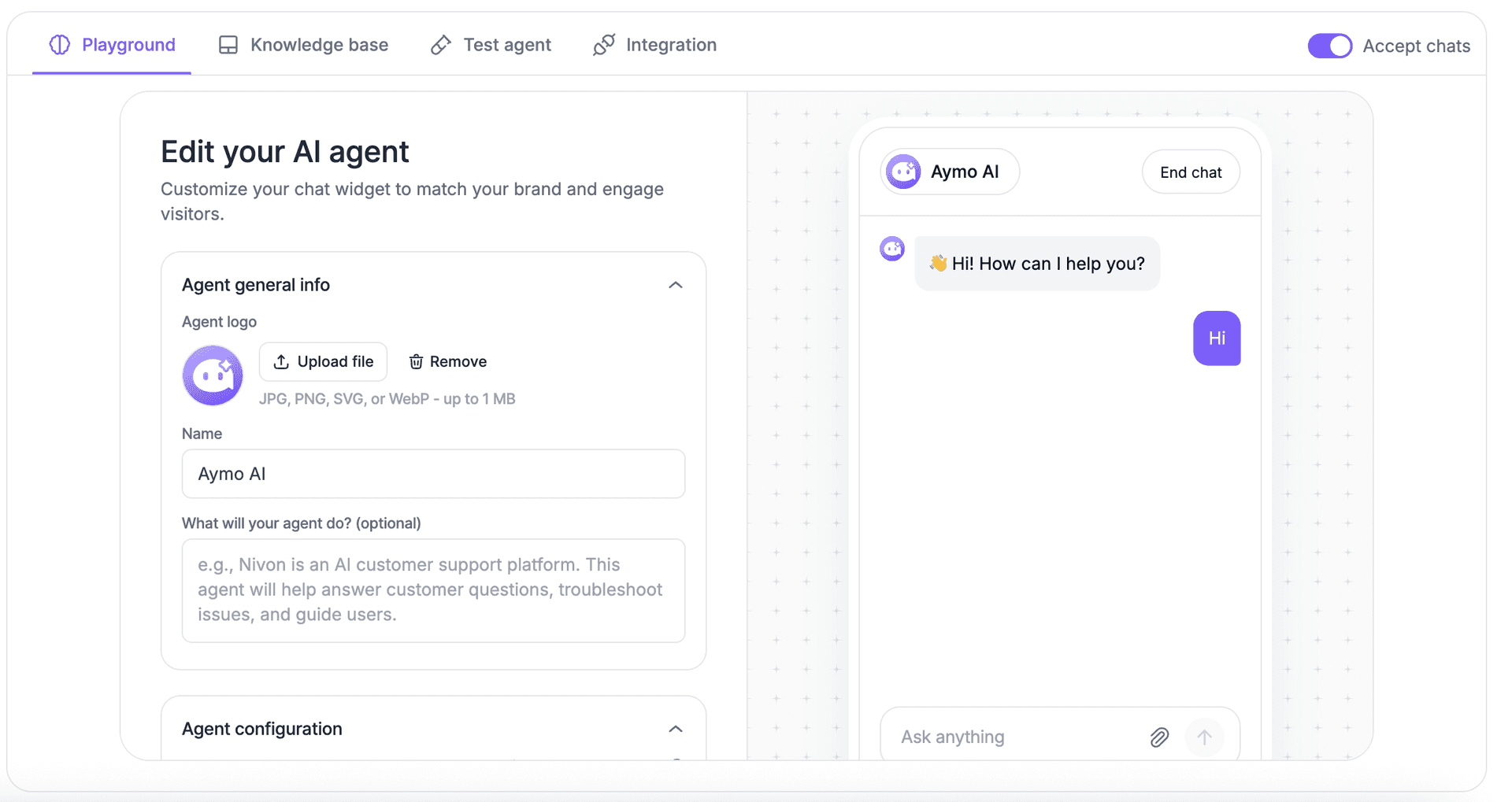
Start a conversation in the preview and ask questions your customers are likely to ask.
Test different scenarios, including:
- Common support questions
- Product and pricing questions
- Troubleshooting requests
- Follow-up questions
- Questions covered by your knowledge base
- Questions outside your knowledge base
Review responses
Check each response for:
- Accuracy
- Relevance
- Completeness
- Clarity
- Tone
- Answer length
- Consistency with your knowledge base
Adjust your agent
When a response needs improvement, change the setting or content that affects it.
For example:
- Change the AI Model to test another model
- Change the Conversation Mode to change how the conversation starts
- Adjust Tone of Voice or Answer Length to change the response style
- Update Custom Instructions when the agent needs a different behavior
- Update the Knowledge Base when information is missing or outdated
Agent general info, chat bubble, and appearance settings are also edited here. Detailed guidance for each setting is in Configure Your AI Agent and Build Your Knowledge Base.
Test again
After making a change, ask the same question again.
Compare the new response with the previous one and continue adjusting until the agent responds as expected.
Last updated: August 24, 2026