Credits and Usage
Credits and Usage shows consumption against plan limits for the selected workspace, along with reset dates and any extra credits purchased on top of the plan.
Use Credits & Usage to see how much of your Nivon plan you have used, how much is available, and whether you have reached any plan limits.
View your usage
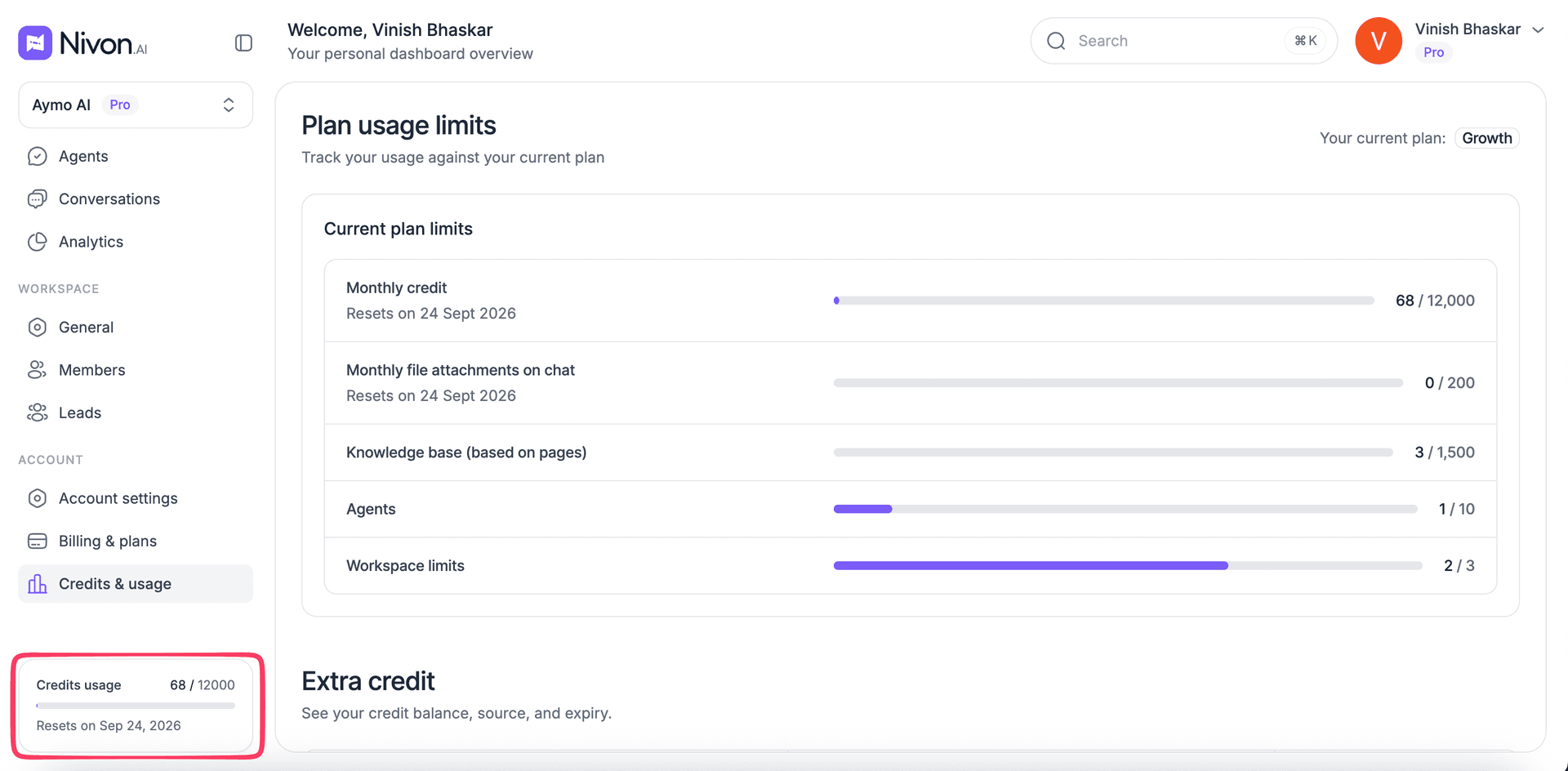
Open Credits & Usage to see usage for the selected workspace.
The page shows your current usage against the limits included with the plan.
Available usage metrics include:
- Monthly credits
- Monthly chat file attachments
- Knowledge base pages
- Agents
- Workspaces
Each metric shows how much has been used and how much is available.
For example: 706 / 12,000 credits
This means 706 credits have been used from the 12,000 credits included in the current limit.
Usage metrics
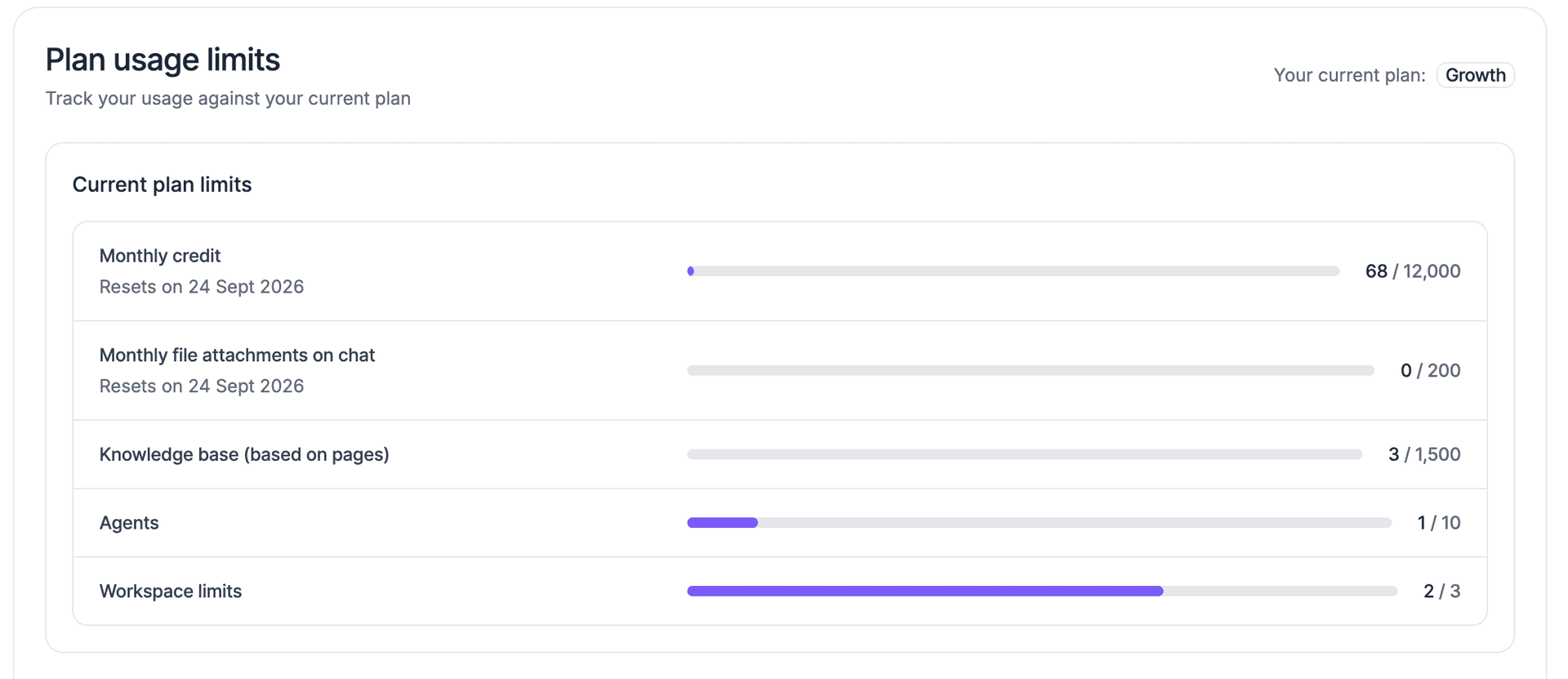
Each metric tracks a different plan limit. All five reset or accumulate independently.
Monthly credits
Monthly credits are used when your AI agents process customer conversations.
Your plan determines how many credits are available during each billing period.
Use the monthly credit usage indicator to:
- Check how many credits have been used
- See how many credits remain
- Monitor usage as conversations increase
- Decide whether your current plan provides enough capacity
Some models use more credits than others. The model's credit multiplier is shown in the AI Model settings.
Monthly chat file attachments
This limit tracks the number of file attachments used in chats during the billing period.
The usage indicator shows how many attachments have been used compared with the limit included in your plan.
Monitor this value if customers regularly upload files during conversations.
Knowledge base pages
This shows how much of your plan's knowledge base capacity is currently being used.
Your usage can increase as you add more pages and content to the agent's knowledge base.
If you are close to the limit, review your existing sources before adding more content.
Agents
The Agents limit shows how many AI agents are currently being used compared with the number allowed by your plan.
For example: 2 / 5 agents
This means 2 agents are currently in use out of a maximum of 5.
Workspaces
The Workspaces metric shows how many workspaces are currently in use compared with the limit on your plan.
For example: 1 / 3 workspaces
This means 1 workspace is currently in use, and the plan allows up to 3.
Reset dates
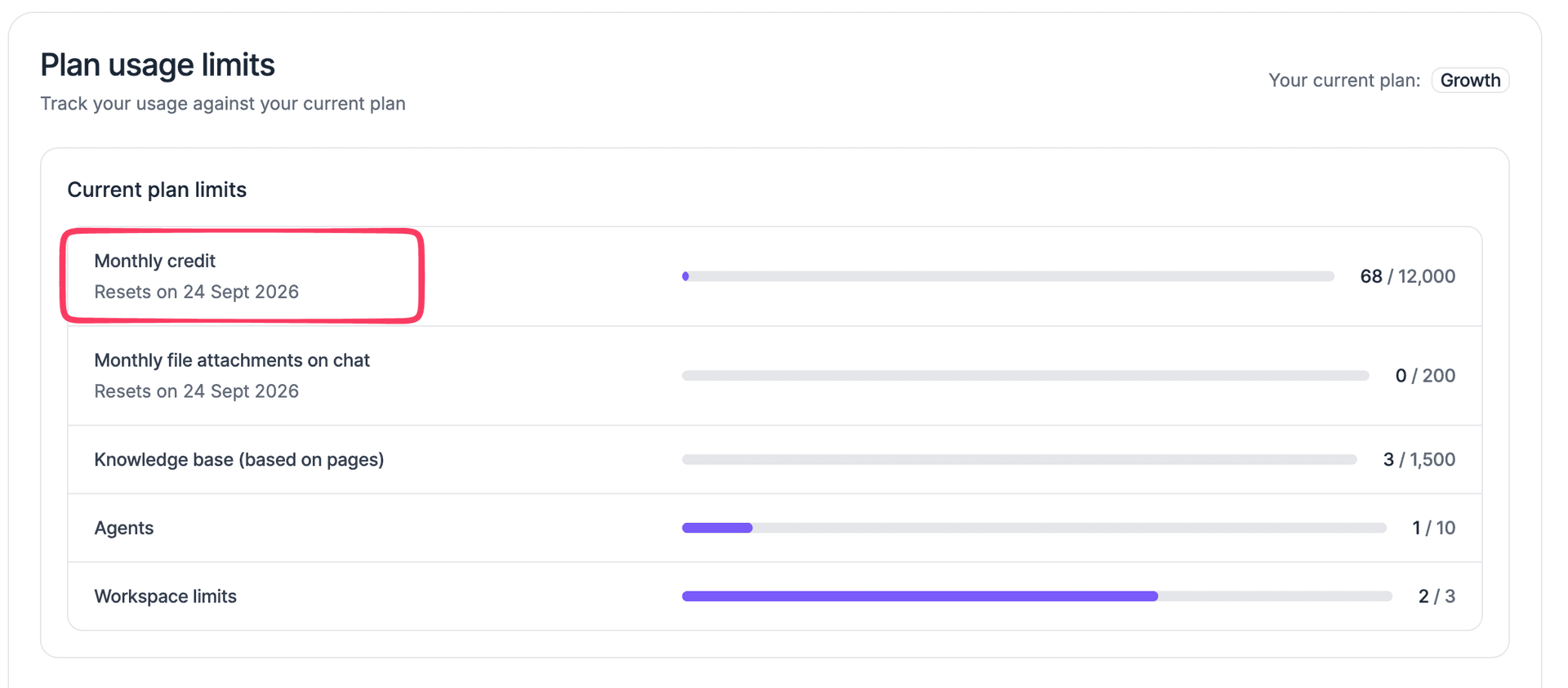
Usage limits that reset periodically show the relevant reset information in the Credits & Usage section.
Check the reset date when monitoring monthly usage so you know when the next usage period begins.
Extra credits
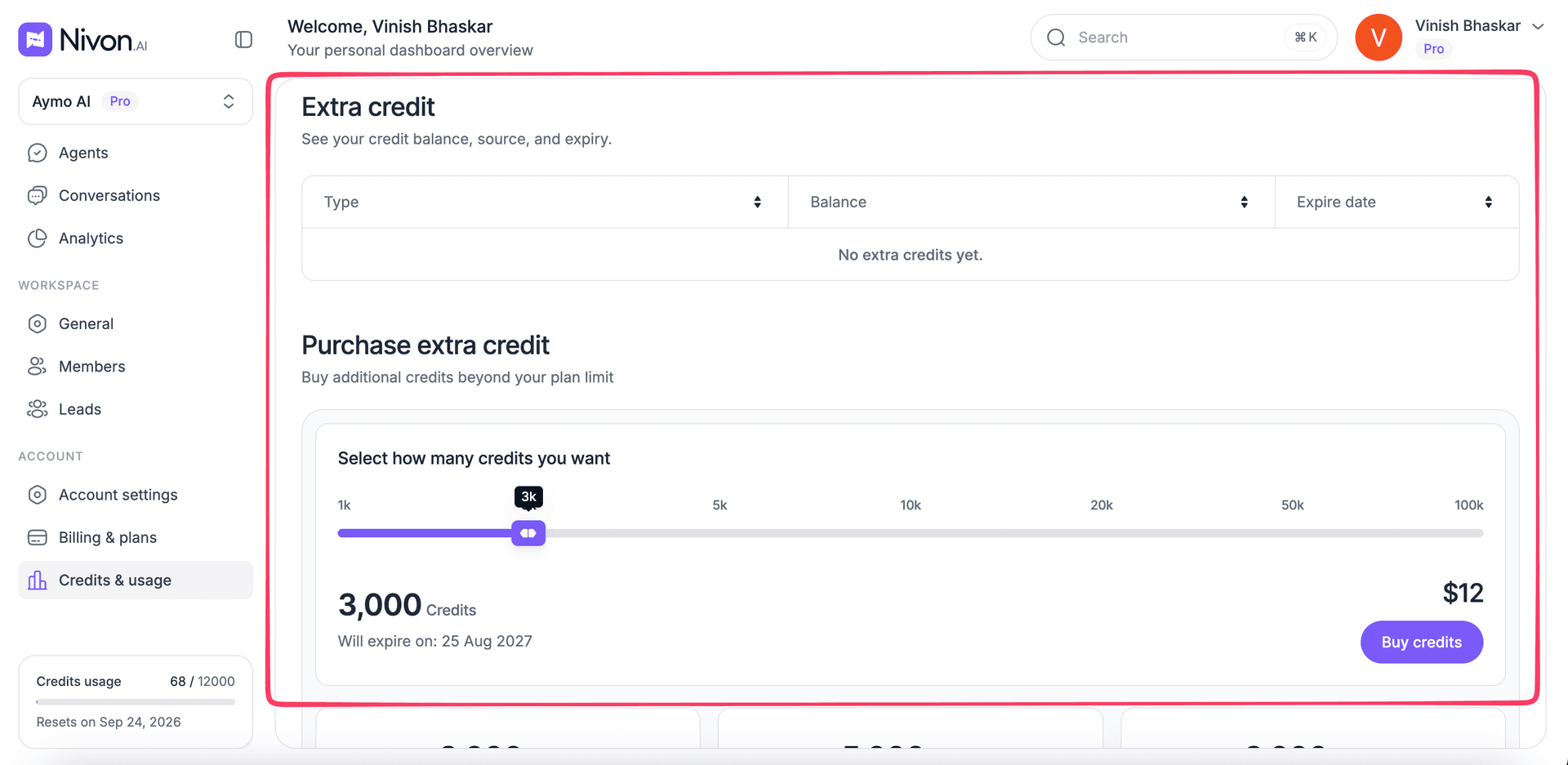
Nivon also offers extra credits in addition to those included with your plan.
The Extra credit section shows:
- Available balance
- Credit type
- Expiry date
Extra credits can have their own expiry date, so check the expiry information before relying on them for future usage.
Buy extra credits
If you need additional credit capacity, use the Buy extra credits option.
The purchase section lets you:
- Select the number of credits you want to buy.
- Review the available package and price.
- Check any applicable discount.
- Review the credit expiry.
- Complete the purchase.
Larger credit packages may provide a lower effective price per credit.
Review the package details before purchasing because extra credits have an expiry period.
Credit purchase history
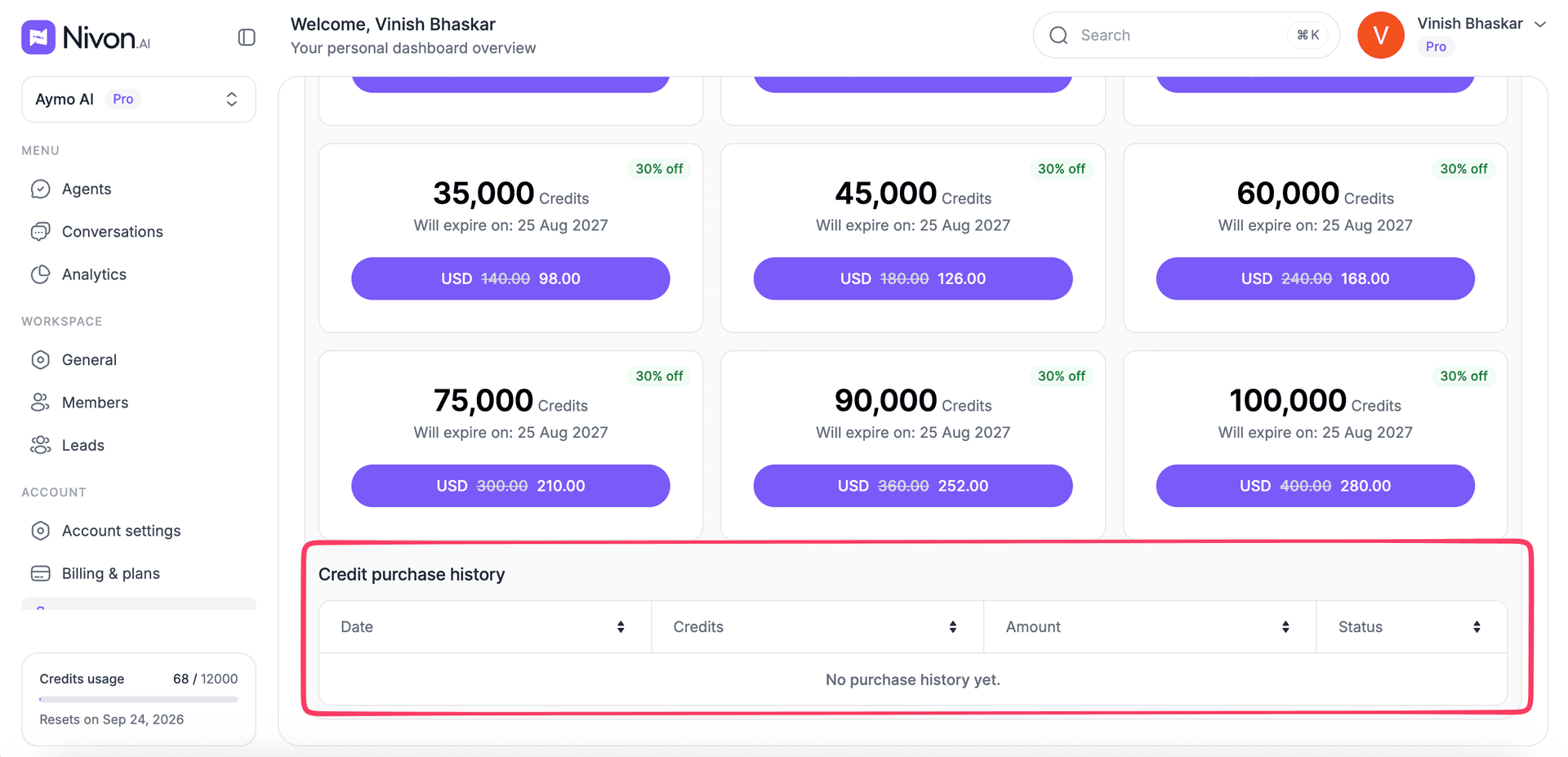
The Credit purchase history section records extra credit purchases.
Each entry can show:
- Date
- Credits
- Amount
- Status
Use this history to check previous credit purchases and their payment status.
Plan credits and extra credits
Keep these two types of credits separate when checking usage.
- Plan credits are included with your subscription and are subject to the limits of your current plan.
- Extra credits are purchased separately and can have their own expiry date.
Check both sections to understand how much additional credit is available.
Monitor usage regularly
Check Credits & Usage when:
- Conversation volume increases
- You add more AI agents
- You add more knowledge sources
- Customers upload more files
- Your monthly credit usage increases
- You are considering a plan change
- You are considering buying extra credits
If your usage regularly approaches the limits included with your plan, review the available plans in Plans & Billing before your usage becomes a constraint.
Last updated: August 24, 2026